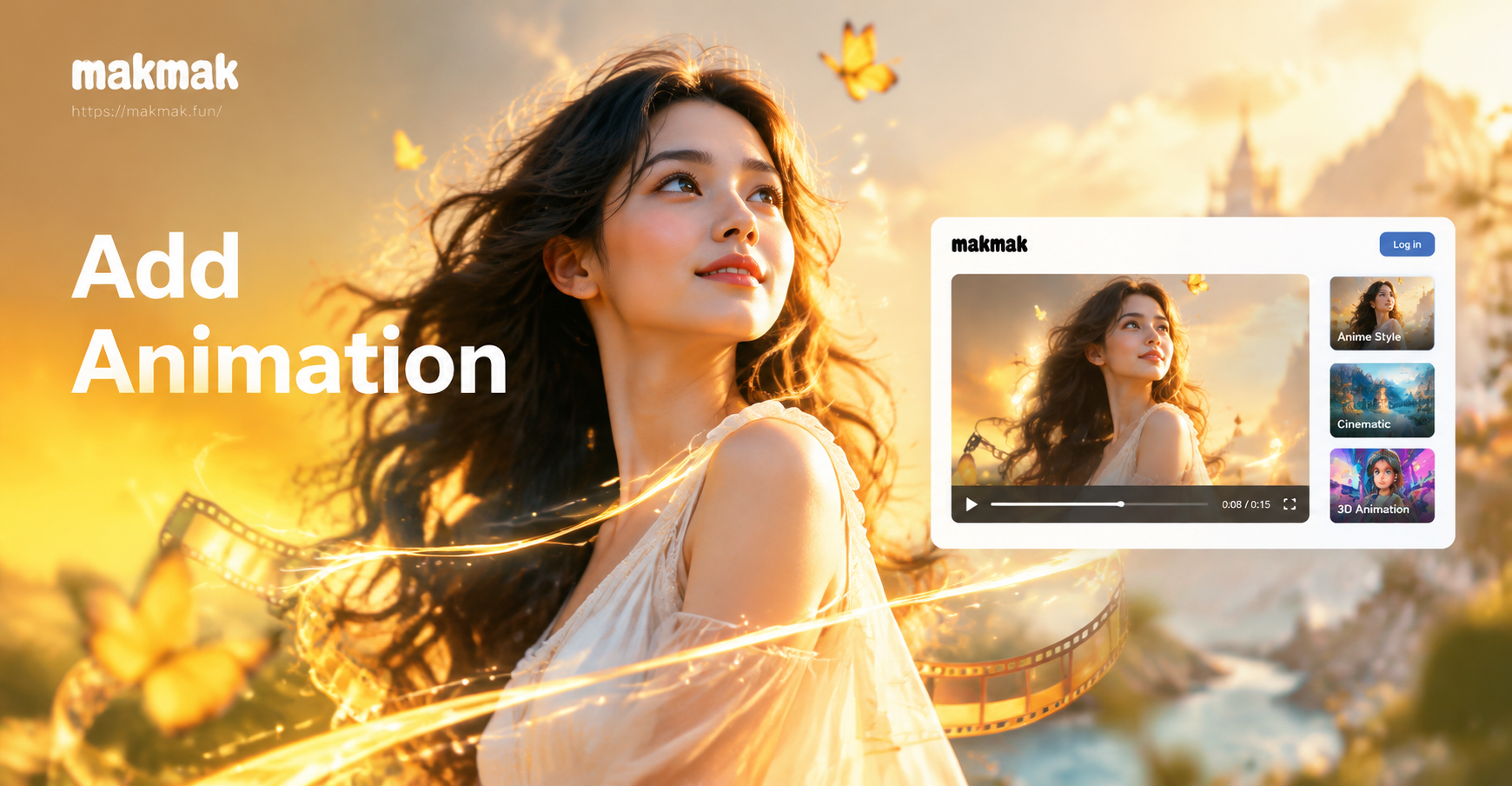
If you want to learn how to add animation in video without installing a desktop editing suite, this guide covers the simplest mobile method. With makmak, an AI design app for Android, you can animate a still photo, create a short animated clip from a text prompt, or apply popular effects such as a hug animation, a kiss animation, old photo revival, and Ghibli style movement. The entire process takes minutes and works with photos and clips you already have on your phone.
What Adding Animation Means for Your Video
Adding animation can mean two things. You can bring a static image to life by making a person blink, smile, or turn their head. You can also apply an illustrated or cinematic effect to an existing video to change its mood. Both approaches are useful for social media, greetings, advertisements, and personal keepsakes.
- Make a portrait speak or move without reshooting.
- Turn a couple photo into an animated hug or kiss clip.
- Convert real footage into a Ghibli style animation.
- Revive old family photos with subtle facial movement.
- Create a short narrative clip from one sentence.
How to Add Animation in Video with the makmak App
The basic workflow is the same for most animation tasks. You open the app, choose an animation tool, import a photo or clip, select a style, and generate the result. Below are the three main methods, from the easiest to the most creative.
Method 1: Animate a Still Photo with Image to Video
This method is best for portraits, couple photos, pet photos, and old pictures. The AI detects the face and main subject, then adds natural motion without changing the person's identity.
- Download makmak from Google Play and open it on your Android phone.
- Tap the image to video or photo animation feature on the home screen.
- Upload a clear front facing photo. Avoid photos where the face is covered or too small.
- Choose a motion style such as blink, smile, head turn, subtle breathing, or a full body animation.
- Tap generate and wait a few seconds for the preview.
- Adjust the intensity or try a different style if the motion looks too fast.
- Export the video in your preferred resolution and share it.
If you want a hand drawn look, select the Ghibli style animation option after importing your clip. The app will transform the frames into a soft illustrated animation while keeping the original scene and characters.
Method 2: Create an Animated Video from a Text Prompt
If you do not have a specific photo, you can describe a scene and let the AI generate a short animated clip. This is useful for backgrounds, abstract loops, character sketches, and social media intros.
- Open makmak and choose text to video.
- Write a simple scene description. Keep it under two or three sentences for better control.
- Select an animation style template such as cartoon, anime, watercolor, 3D, or cinematic.
- Tap generate and wait for the result.
- Review the motion. If something looks wrong, edit the prompt and generate again.
Example prompts you can adapt:
- A small fox walks through a snowy forest at sunrise, soft light, cartoon style.
- A paper boat floats across a calm lake under a pastel sky, watercolor animation.
- A young woman with short red hair turns toward the camera and smiles, anime style.
- Rain falls on a neon lit city street at night, cinematic loop.
When you write a prompt, include the subject, the action, the environment, and the visual style. That gives the AI enough information to produce a stable animation instead of a flickering clip.
Method 3: Apply Trending Animation Effects
makmak includes several effects that are popular on short video platforms. These effects are designed for two person interactions or for restoring old photos.
- AI Hug Animation: Upload two separate photos of two people. The app places them into a warm animated hug scene. This works well for couples, friends, and family.
- AI Kiss Animation: Similar to the hug effect, this option creates a romantic short video from two portraits.
- Old Photo Revival: Upload an old or faded portrait. The AI adds natural blinking, smiling, and head movement, which makes the person feel present again.
- Ghibli Style Animation: Upload a video or photo and convert it into a soft, hand drawn animated scene inspired by classic Japanese animation.
For multi person effects, the AI separates each face and keeps them distinct. That means you do not get blended faces or swapped identities when you animate a group photo.
Choosing the Right Animation Style for Your Project
Different goals need different styles. A wedding photo may look best with a soft romantic effect, while a product teaser may need a clean 3D or cinematic look. Use the style that matches the mood of the original content.
- For personal memories, use blink, smile, old photo revival, or warm hug effects.
- For social media, use Ghibli style, anime, or playful cartoon effects that stand out in a feed.
- For cinematic clips, use text to video with cinematic or watercolor templates.
- For greetings and announcements, use head turn or subtle motion with a clean background.
Tips for Better Animation Results
AI animation looks best when the source material is clean. These simple steps will improve your output.
- Use a photo with a clear face and even lighting.
- Avoid heavy shadows across the eyes or mouth.
- Keep the subject centered and not too close to the edge.
- For old photos, use the highest resolution scan you have.
- For text prompts, write one clear action instead of many competing actions.
- Generate a short clip first, then extend or combine clips if you need a longer video.
Common Problems and How to Fix Them
The face looks distorted. Choose a clearer photo with the person facing the camera. Tight crops or side profiles can confuse the model.
The motion is too fast or unnatural. If the app offers an intensity control, lower it. If not, switch to a subtler style such as blink or breathing.
The style does not match the original person. Use a clear front facing photo and keep the face well lit. That helps the AI hold the identity.
The exported video is blurry. Export at the highest resolution available and avoid zooming in after export.
How to Export and Share Your Animated Video
After the animation looks right, tap the download button. The video saves to your gallery in a standard format. You can share it directly to Instagram, TikTok, WhatsApp, or YouTube. For best quality on social platforms, upload the original file instead of re recording the screen.
Frequently Asked Questions
Can I add animation to an existing video? Yes. Upload the clip to makmak, choose a style such as Ghibli animation or a cinematic effect, and generate. The app will transform the frames while keeping the main motion.
Do I need design or animation skills? No. The workflow is built for beginners. You select a style and let the AI handle the complex parts.
How long can the animated video be? Generated clips are usually a few seconds long. You can create multiple clips and stitch them together in a free editor if you need a longer video.
Is the app free to use? makmak offers free features and optional paid plans for higher resolution or faster generation. Check the app for current pricing.
Can I animate a group photo without mixing faces? Yes. The multi person processing feature identifies and separates each face, which helps keep identities stable in group animations.
Start Adding Animation to Your Videos Today
The easiest way to learn how to add animation in video is to try one small project. Open makmak, import a selfie, choose the smile or Ghibli effect, and generate a five second clip. Once you see the result, you can move on to hug animations, old photo revival, or text driven scenes. With a few taps, a still image becomes a moving story.