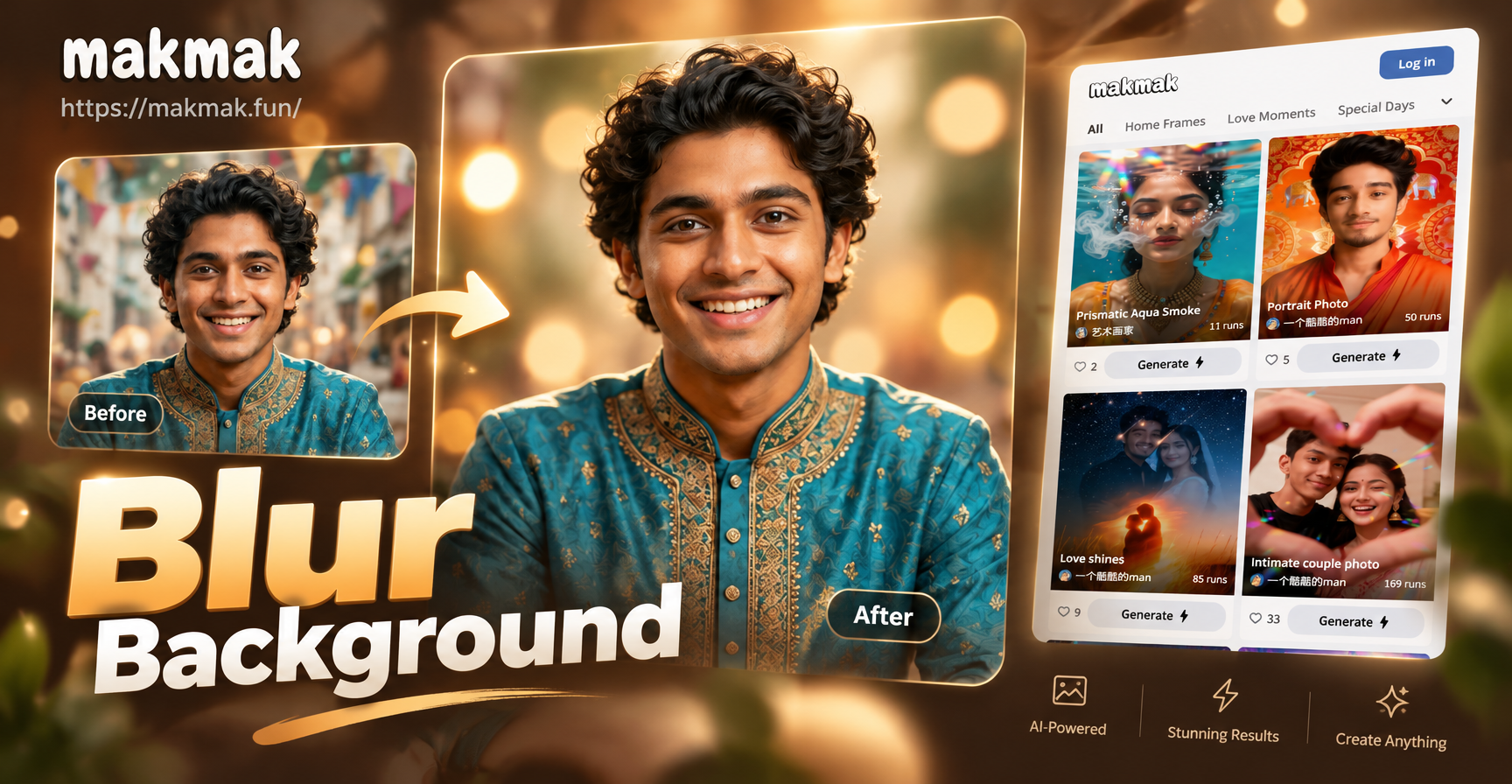
Why Blur the Background of a Photo?
Blurring the background is one of the fastest ways to make a subject stand out. It removes distracting elements, adds a professional depth-of-field effect, and gives ordinary photos a polished look. Portrait photographers call this soft background a bokeh effect, and it works for people, pets, products, and food photos alike.
You do not need an expensive DSLR or a lens with a wide aperture. With an AI photo editor like makmak, you can upload an existing photo, describe the blur you want, and generate a new version in seconds. The app runs entirely on your Android device, and it can preserve the main subject while softening the background.
What Does Background Blur Mean?
Background blur, also called shallow depth of field, keeps the subject sharp while the area behind it appears soft and out of focus. In traditional photography, this effect comes from using a large aperture, such as f/1.4 or f/2.8, and a longer focal length. AI tools recreate the same look without any camera settings.
There is a difference between a light blur and a strong bokeh. A light blur only softens edges slightly, while a strong bokeh turns background lights into smooth circles. You can control the amount by changing your prompt when using an AI photo editor.
How to Blur a Photo Background With makmak
makmak is a mobile AI design app available on Google Play. It is not a web tool, so you will need to download it on an Android phone or tablet. The instructions below use the app's image-to-image tool, which lets you upload a photo and apply a text-based edit.
Step 1: Download and Open makmak
Install makmak from Google Play and open it. The home screen shows tools for image generation, video generation, and photo editing. Choose the image-to-image or photo editing option. This is the feature that uses your photo as the starting point.
Step 2: Upload Your Photo
Pick a clear photo from your gallery. The best results come from images where the subject is easy to separate from the background. A portrait with the person in the center works very well. Product shots and pet photos also work.
Step 3: Describe the Blur Effect
In the prompt box, tell the AI exactly what to change. A simple prompt is: 'Keep the subject sharp, blur the background softly, shallow depth of field, realistic photography.' You can add style details such as 'creamy bokeh', '80mm portrait lens', or 'blurred city street background'.
Step 4: Choose a Realistic Photography Style
makmak includes a large library of style templates. For background blur, select a realistic photography or portrait style. This keeps the photo looking natural instead of turning it into a painting or cartoon. The style template guides the AI's output while your prompt controls the blur.
Step 5: Generate and Review
Tap the generate button and wait a few seconds. The app will create a new version of your photo. Check the subject's edges. If you are happy, save it to your gallery. If the blur is too strong or too weak, adjust your prompt and generate again.
Prompts You Can Copy for Different Photo Types
Different photos need different blur wording. Here are practical prompts you can use inside makmak.
Portrait and Selfie
- Keep the person in sharp focus, soften the background with a creamy bokeh, 85mm portrait lens look, realistic photo.
- Blur the busy street behind the subject, keep the face and shoulders crisp, natural skin tone, shallow depth of field.
- Soft background blur for a selfie, keep my face in focus, smooth light, portrait mode style.
Product and E-commerce
- Blur the messy desk background, keep the product sharp and centered, clean studio look, commercial product photo.
- Add a soft white background blur behind the bottle, keep the label readable, professional e-commerce shot.
- Isolate the watch from the table, blur the background gently, warm lighting, macro photography style.
Pet and Animal
- Keep the dog in focus, blur the garden background, natural daylight, shallow depth of field, realistic photo.
- Blur the living room behind the cat, keep the eyes sharp, soft window light, pet portrait style.
Food and Lifestyle
- Blur the kitchen counter behind the plate, keep the food sharp, warm tones, food photography style.
- Make the coffee cup stand out, blur the cafe background, soft morning light, lifestyle photo.
You can change the subject and background words in these prompts. The AI follows the structure better when you name both what to keep sharp and what to blur.
Choosing the Right Photo for Background Blur
The starting image matters. Look for a photo with a clear main subject and some separation from the background. A portrait where the person stands a few feet away from a wall works better than a group photo where everyone is crowded together. The AI can still handle group photos, but a single subject gives cleaner edges and a more natural look.
Lighting also helps. A photo with a bright subject and a slightly darker background creates natural contrast. If your subject blends into the background, the AI may struggle to find the edge. You can still try, but you may need to refine the prompt once or twice.
Advanced Prompt Techniques
For stronger control, include camera and lens terms in your prompt. Words like 'f/1.8 aperture', '50mm focal length', 'bokeh balls', and 'soft focus background' tell the AI what kind of blur you want. You can also describe the background itself. Instead of just saying 'blur the background', say 'blur the crowded restaurant behind the subject'. This gives the AI more context and leads to a more accurate edit.
You can also mix styles. Keep the subject realistic but ask for a dreamy background. For example: 'Keep the bride in sharp focus, turn the garden into a soft pastel blur, dreamy wedding photo, realistic people'. This lets you create artistic depth without changing the main subject.
Tips for Better Background Blur Results
- Use a photo with a clear subject. Overlapping or cluttered edges can confuse the AI.
- Mention the lens effect you want. Terms like '85mm', 'shallow depth of field', 'f/1.8', and 'bokeh' produce a more realistic result.
- Choose the right style template. A realistic photography template gives a natural blur. An anime or cartoon template will change the image style too.
- Keep the prompt short but specific. Two or three sentences are enough.
- If the subject also becomes blurry, add 'keep the subject in sharp focus' to the start of the prompt.
- If the background still looks busy, use stronger words like 'strong background blur', 'completely blurred background', or 'heavy bokeh'.
Common Problems and How to Fix Them
The subject is blurry too
This happens when the prompt focuses only on blur. Rewrite it to make the subject the priority. For example: 'Keep the woman's face and hair sharp, blur the background only.'
The background did not change enough
Make the request more direct. Use 'heavy background blur' or 'blur the entire background completely'. You can also try a different style template, such as 'portrait mode' or 'shallow depth of field'.
The output looks unnatural
Avoid words that push the AI toward painting or illustration if you want a photo. Stick to 'realistic photography', 'natural light', and 'true-to-life colors'. If the result still looks off, upload a higher resolution photo with better lighting.
The edges around the subject look messy
Choose a photo with better contrast between the subject and background. For example, a dark shirt against a bright wall separates more cleanly than a patterned shirt against a cluttered room.
Why Use an AI App Instead of Traditional Editing?
Traditional background blur tools often require manual masking, brush work, and careful selections. That can take ten to twenty minutes per photo. AI photo editing handles the selection and blur in one step. You simply tell the app what you want. This is especially useful for people who need quick social media content, product listings, or profile pictures.
makmak combines this with a large filter library and mobile convenience. You can generate a blurred version, try a different style, or even create a short video from the same photo. The entire workflow stays on your phone, which is perfect for creators who edit on the go.
Making the Most of makmak's Style Templates
Beyond realistic photography, makmak offers more than one million style filters. Some styles, like cinematic quality or watercolor, can add a creative twist to a blurred background. If you want a natural look, stick with realistic styles. If you want an artistic post, try a soft painting or film style and let the background blur blend into the texture. The key is to keep the main subject clear in your prompt while the style template handles the overall mood.
For portraits, a cinematic style can make a blurred city background look like a movie still. For products, a clean studio style keeps the blur subtle and the item sharp. Experiment with two or three templates on the same photo to see which one matches your goal.
Frequently Asked Questions
Can I blur the background of any photo?
Yes. The app works best when the main subject is clear and there is some separation from the background. Portraits, product shots, and pet photos usually give strong results.
Do I need to select the background manually?
No. The AI understands your prompt and softens the area behind the subject automatically. You do not need masks or brushes.
Is makmak free to download?
The app is available on Google Play. Some features may require in-app purchases, but you can explore the interface and try basic edits after downloading.
Can I blur a video background too?
makmak also offers video generation and photo-to-video tools. While the focus of this guide is still photos, the same image editing tools can prepare frames for later animation.
What if I want the background completely removed instead of blurred?
You can describe a clean, empty, or solid background in your prompt, such as 'remove the background completely and replace it with a soft white studio backdrop'. The image-to-image tool can often handle that request as well.
Final Steps to Get a Blurred Background Photo
Open makmak, upload a clear photo, write a prompt that keeps the subject sharp, choose a realistic photography style, and generate. Review the result and adjust the wording if needed. With a little practice, you can turn any busy snapshot into a clean, professional image. Whether you are posting on social media, updating a profile picture, or preparing a product listing, a soft background blur makes your subject the center of attention.