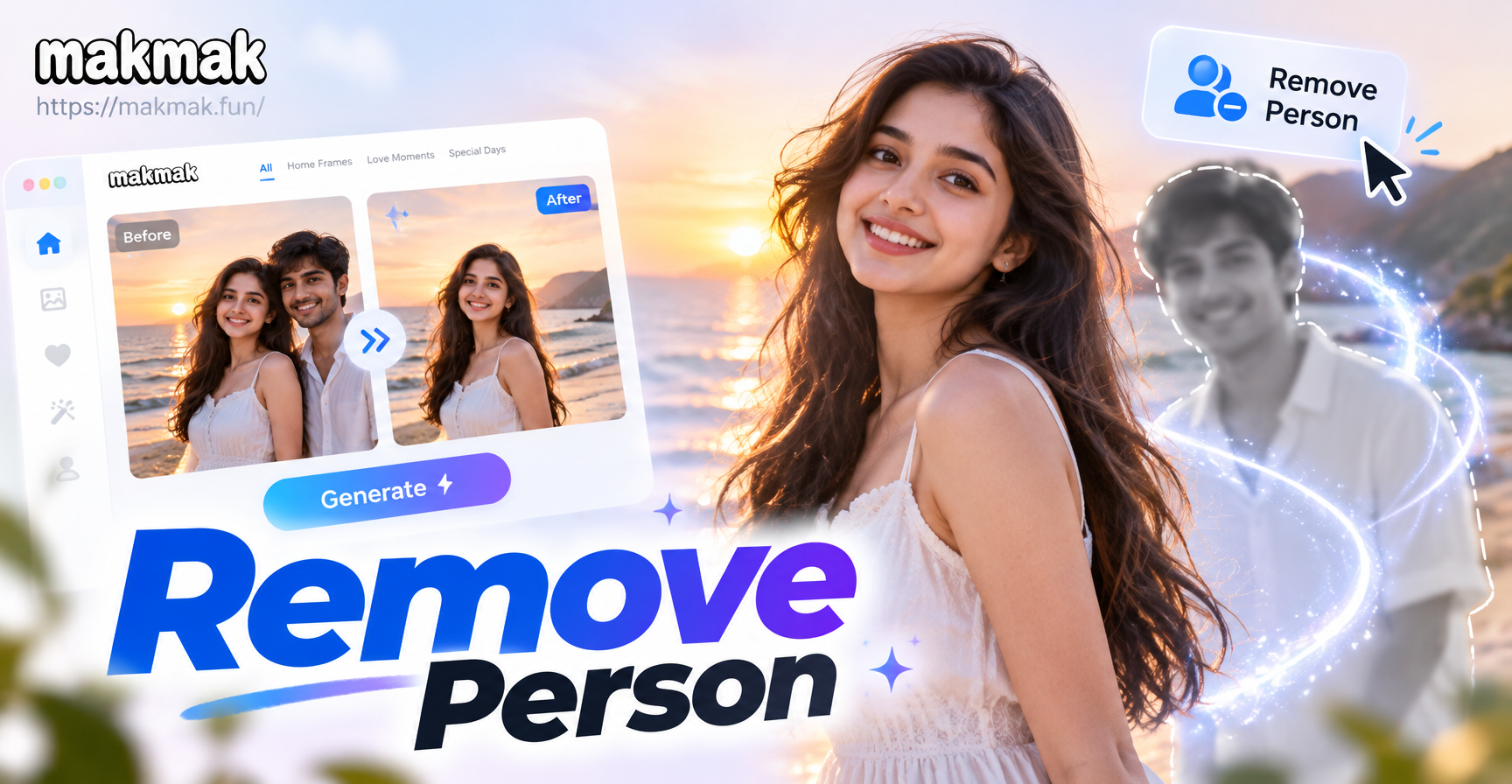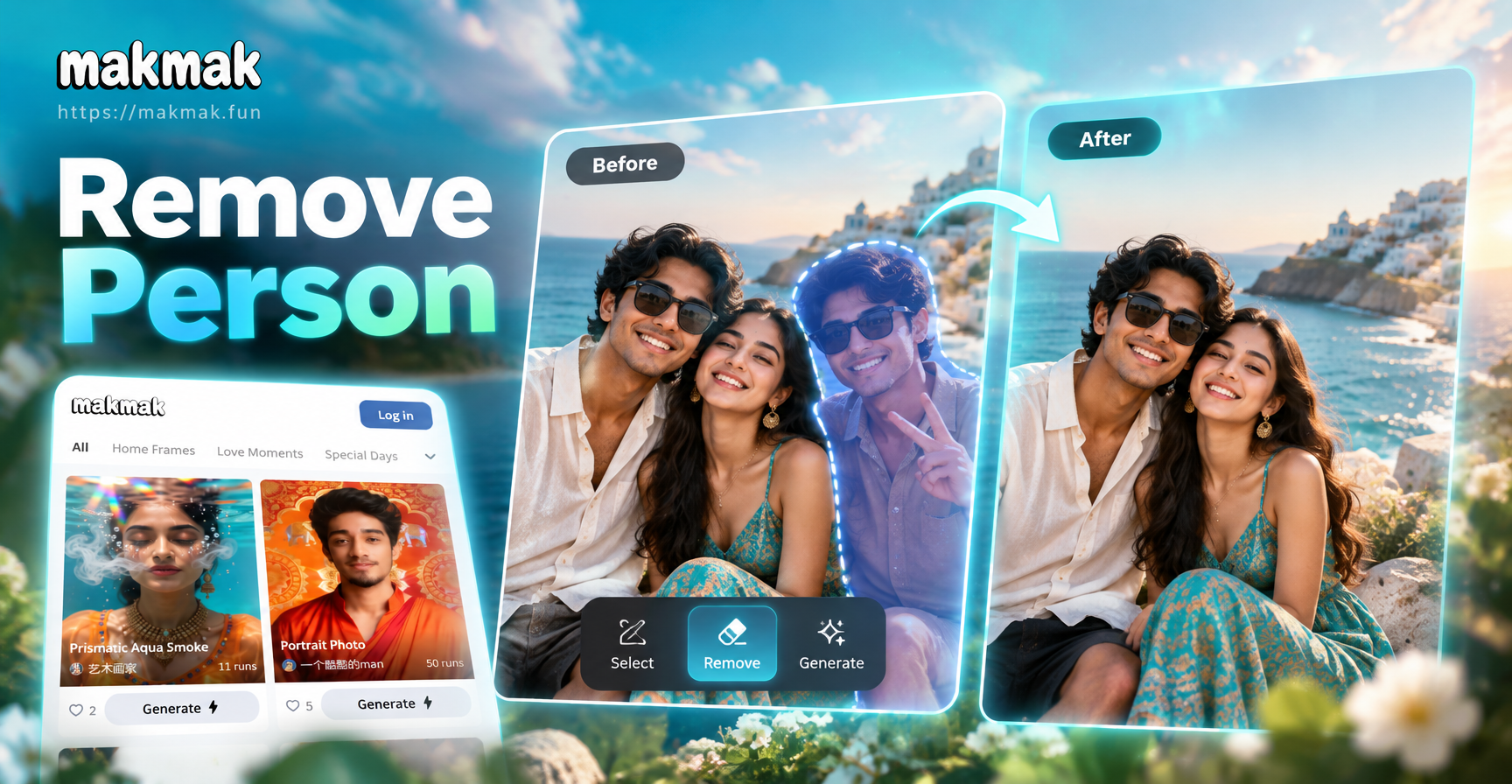
Removing an unwanted person from a picture is one of the most common photo editing requests, but it is also one of the easiest to get wrong. A quick crop can ruin the composition, and a careless erase can leave shadows, blurry patches, or missing limbs behind. The good news is that AI photo editors and standard cleanup tools have made the job much simpler. This guide explains how to remove a person in a picture using mobile apps, desktop software, online AI removal tools, and smart reframing, so you can choose the method that fits your photo and skill level.
Why Removing a Person Takes a Little Planning
When you delete a person from a picture, the tool has to rebuild the area that was hidden behind them. That background might include a wall, a beach, a table, or other people. If the person is close to the main subject, the tool also has to preserve edges, clothing, and lighting. Before you start, zoom in and check what is behind the person. This helps you decide whether AI removal, manual cloning, or a simple crop will give the cleanest result.
You should also work on a copy of the original photo. A non-destructive workflow lets you compare the before and after and return to the original if the edit goes too far.
Method 1: Use an AI Photo Editing App on Your Phone
Mobile AI editors are often the fastest way to remove a person from a picture, especially for social media photos and casual snapshots. Most modern editors include an object removal or healing tool that uses generative AI to analyze the surrounding pixels and fill the gap automatically.
Step 1. Pick a clean source image
Use the highest resolution version you have. A sharp image gives the AI more detail to work with and reduces the chance of a soft or blurry patch after removal. Avoid heavily compressed screenshots when possible.
Step 2. Open the photo in the editing tool
Upload the image to your chosen app. If you use an all-in-one AI design tool like makmak, explore its image-to-image editing options. You can often use the original photo as a reference and generate a rebuilt version of the scene without the unwanted person.
Step 3. Select the person and surrounding area
Use the object removal, heal, or brush tool to paint over the person. Include the edges of their body, hair, and any shadow that falls on the ground. If the tool has a mask preview, check that you have not covered the main subject.
Step 4. Generate and refine
Run the removal and review the result at full size. If the background looks blurry or repeated, undo and try a smaller selection. You can also use a healing brush to patch small artifacts after the AI pass.
Method 2: Remove a Person in Desktop Software
If you already edit photos on a computer, desktop tools give you more control. Photoshop, GIMP, and browser-based editors like Photopea all have cloning and healing tools that work well for this task.
Use content-aware fill in Photoshop
Open the image and duplicate the background layer. Use the Lasso or Pen tool to draw a rough selection around the person, including a little space around their outline. Go to Edit and choose Content-Aware Fill. Photoshop will analyze the surrounding area and generate a replacement. Use the preview to adjust the sampling area and output settings.
Clone stamp for precise control
For small or complex areas, the Clone Stamp tool is more predictable. Hold Alt or Option to sample a clean patch of background, then paint over the person in short strokes. Change the sample point often to avoid obvious repetition.
Use the healing brush for soft blends
The Healing Brush blends texture and lighting from the sampled area into the target. It works well for skin, grass, sand, and other organic surfaces. Keep the brush slightly larger than the artifact you want to remove.
Method 3: Use a Free Online AI Removal Tool
Several browser-based AI tools can remove objects and people without installing software. They are useful for quick edits, but you should check the privacy policy before uploading personal photos. These tools usually ask you to upload an image, brush over the unwanted person, and download the result within a few seconds.
Online tools work best when the background is fairly simple, such as a wall, sky, or empty street. For busy scenes, you may need to do a second pass or switch to a desktop editor for manual cleanup.
Method 4: Crop or Reframe the Photo
Sometimes the easiest way to remove a person is to change the frame. If the unwanted person is near the edge, crop them out and tighten the composition around the main subject. This method preserves full image quality because no pixels are generated or cloned.
If cropping would cut off the main subject, try changing the aspect ratio. A 4:5 vertical crop often removes strangers on the left or right while keeping the subject centered. A square crop works well for profile photos and social media posts.
Method 5: Rebuild the Photo With AI Generation
When the background is too complex to remove cleanly, you can use AI image generation to create a new version of the scene. Upload the photo as an image reference and describe the clean background in a text prompt. The AI can preserve the main subject while replacing the area around them.
makmak is a mobile AI design app that includes image-to-image creation and a wide range of style filters. Instead of painstakingly cloning a busy beach or crowded street, you can upload the original photo and use the app to generate a polished version with the unwanted person removed. This approach works especially well for stylized edits, where the AI can rebuild the entire background in a consistent artistic style.
Removing a Person From a Group Photo
Group photos are trickier because people often stand close together and overlap. If the unwanted person is on the end, crop or AI removal works well. If they are in the middle, start by selecting the entire figure plus a thin margin. Use an AI removal tool to fill the gap, then zoom in on the remaining subjects and repair any edges with a healing brush. If the removal leaves a missing shoulder or arm, copy a similar area from another part of the image and blend it in.
For very tight group shots, consider using an AI image generation app to rebuild the scene. Upload the group photo and ask the AI to create a version with the same people minus the unwanted person. This method is not perfect for preserving every tiny facial detail, so use it for casual or stylized photos rather than formal portraits.
How to Get Clean Results
No matter which method you choose, a few habits will improve the final image. Zoom in to 100 percent before you finish. Check for leftover shadows, reflections, and faint outlines. Feather or soften the selection edges so the edit blends naturally. If the removal area crosses a pattern, such as bricks or tiles, use the clone tool to realign the pattern after the AI pass. Finally, compare the edited image with the original at normal viewing size. Small artifacts may be invisible on a phone screen but obvious when printed or viewed on a large monitor.
Common Mistakes to Avoid
One common mistake is selecting only the person and not their shadow or reflection. The result looks fake because the shadow remains even though the body is gone. Another mistake is using a brush that is too soft, which can leave a blurry outline around the edited area. A third mistake is overdoing the healing tool on textured backgrounds, which creates a smeared or repeated pattern. Instead, work in short strokes, resample frequently, and combine AI removal with manual touch-ups for the most believable result.
When to Replace Instead of Remove
If the person is very close to the main subject, overlapping arms or clothing, AI removal may damage the subject. In that case, consider replacing the photo with a new AI-generated version. You can describe the scene without the unwanted person and use the original photo as a style or composition reference. This is especially useful for group photos, event shots, and travel pictures where the background is valuable but the extra person ruins the moment.
Quick Checklist Before You Share
After you remove the person, save a high-resolution copy and export a web-sized version for sharing. Check the image at full zoom for repeated textures, soft patches, and color mismatches. If the photo will be printed, keep the edit on a separate layer or save a copy before flattening. With the right tool and a careful selection, you can remove a person from a picture without leaving obvious traces, and the whole process often takes less than five minutes.