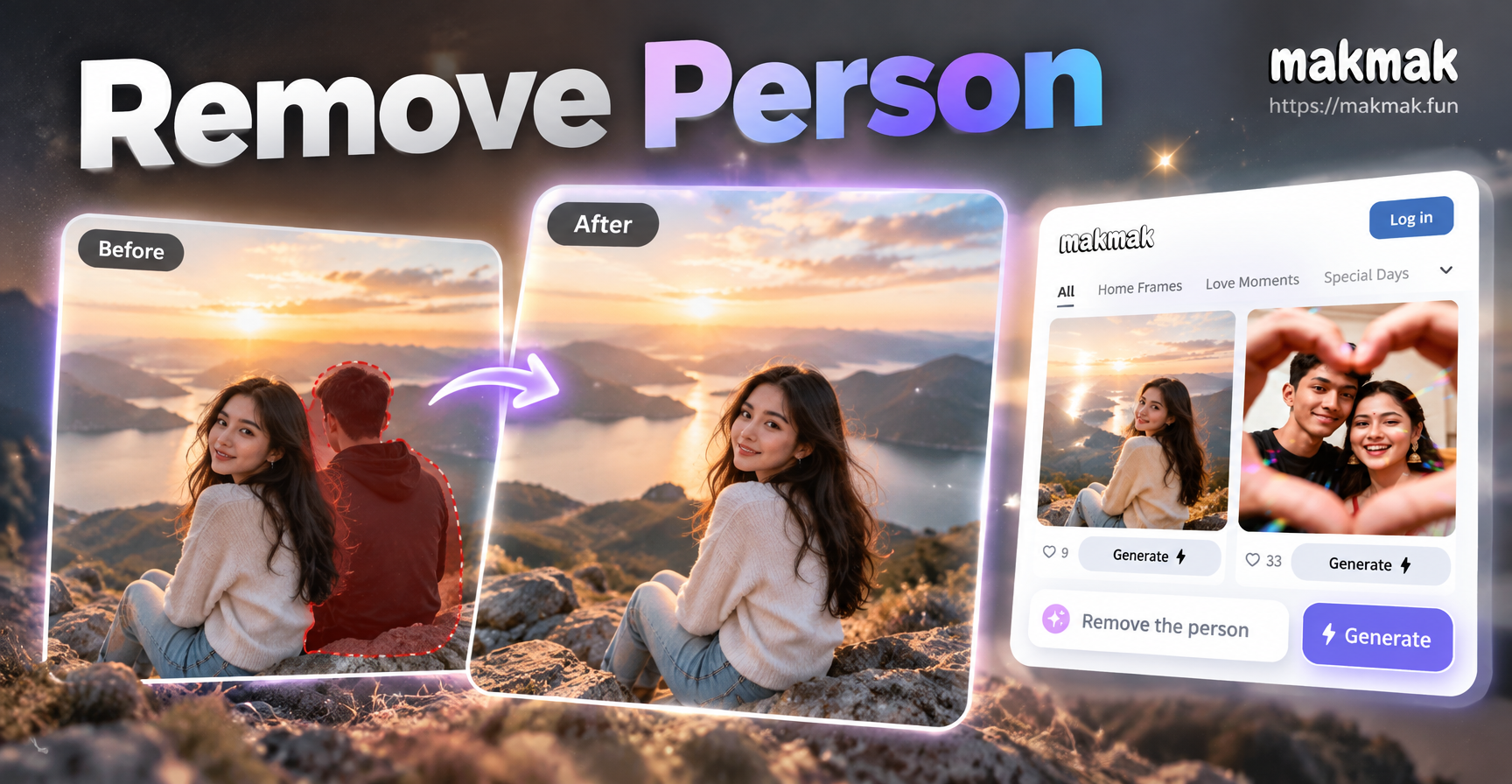
If you have ever looked at a group photo and thought, 'How can I remove a person from a photo?' you are not alone. Photo bombers, former partners, strangers in the background, and accidental subjects can ruin an otherwise perfect image. The good news is that modern AI editing tools have made person removal much easier than it used to be. You no longer need to be a Photoshop expert or spend hours cloning pixels. With the right mobile app and a few simple techniques, you can erase unwanted people while keeping the photo looking natural.
Before you start, it helps to understand the basic workflow. The goal is not just to delete a person. It is to rebuild the area behind them so that the final image looks realistic. AI inpainting tools analyze the surrounding background, textures, lighting, and perspective. Then they fill the selected area with new pixels that match the scene. This process works well on simple backgrounds and can also handle moderate complexity if you refine the results.
Why You Might Need to Remove a Person From a Photo
There are many reasons someone asks how to remove a person from a photo. The most common situation is a photobomber or a stranger in the background. Other users want to remove an ex from a favorite travel shot, clean up a team photo after someone left the company, or create a solo portrait from a crowded frame. In some cases, parents remove a child who is not supposed to appear in a public image. Photographers and small business owners use this technique to keep product photos clean and focused. Whatever your reason, the same core steps apply.
What You Need Before You Start
Use the Highest Resolution Image Available
High resolution means more detail for the AI to analyze. A blurry or heavily compressed image will make the edges and textures harder to rebuild. If you have the original file, use it.
Understand the Background
The easier the background, the better the result. A plain wall, sky, sand, or grass is easier to reconstruct than a busy street with signs, people, or complicated patterns. If the person is standing in front of an important object, you may need extra manual cleanup.
Check Legal and Ethical Boundaries
Removing a person from a photo can be harmless when you are cleaning a personal image. However, altering photos of others, especially in news, legal, or professional contexts, can raise serious concerns. Always make sure you have the right to edit the image and that the change does not misrepresent reality or harm anyone.
How to Remove a Person From a Photo Using AI
The fastest method for most people is an AI photo editor. These tools use machine learning to identify objects and fill removed areas. Here is a general step by step workflow.
- Download a reliable AI editing app. The makmak app is available on Google Play and combines AI image generation with image-to-image editing. It is designed for mobile use, so you can edit from your phone.
- Open the photo. Import the image you want to clean up. Choose the highest quality version you have.
- Mark the person you want to remove. Use the cleanup or eraser tool if available. Some apps ask you to brush over the person, while others let you draw a rough mask.
- Let the AI fill the space. The app analyzes nearby pixels and generates a new background. This usually takes a few seconds.
- Review the result. Zoom in and check the edges, shadows, and textures. If the area looks smudged or repeated, undo and try again with a smaller brush.
- Save and share. Export the photo in high resolution and keep a copy of the original for safety.
If you use makmak, the image-to-image tools can help with creative retouching and style changes after you clean the photo. For example, you can remove the person first and then apply a style filter to the whole image. Because makmak is a mobile app only, all editing happens on your phone. There is no web version, so download it from Google Play before you begin.
Manual Methods for Removing a Person From a Photo
Clone Stamp and Healing Brush
Desktop editors like Photoshop, GIMP, or Affinity Photo include clone stamp tools. You sample a clean area and paint over the person. This gives you full control, but it requires patience and steady hands. The healing brush blends the sampled texture with the surrounding area, which helps reduce obvious repeats.
Cropping and Recomposition
Sometimes the easiest fix is to crop the person out entirely. If the unwanted subject is at the edge of the frame, a tighter crop can remove them without any pixel repair. You can also use content-aware fill in Photoshop or similar tools to extend the background after cropping.
Using Built-In Phone Tools
Many modern phones include object eraser functions. Google Photos, Samsung Gallery, and some Xiaomi devices have a magic eraser or object remover. These tools are free and convenient for quick fixes. They may not handle complex scenes perfectly, but they are a good first option.
Tips for Natural-Looking Results
Match the Lighting and Shadows
The most common telltale sign of a poor removal is a missing shadow. If the person cast a strong shadow, the AI may not remove it automatically. After the initial pass, check the ground and surrounding surfaces. If a shadow remains, brush over it separately.
Keep Background Lines and Textures Consistent
Look at edges, straight lines, brick patterns, or fabric textures. If the AI repeats a pattern too obviously or blurs a sharp line, undo the edit and use a smaller selection. Some apps allow you to adjust brush size and strength for more precise work.
Work in Layers When Possible
If you are using a desktop editor, duplicate the original layer first. That way you can always go back to the unedited photo. Mobile apps usually keep an undo history, but a saved original is safer.
Refine the Edges
After the person is removed, there may be a faint halo or blurred edge. Use a healing brush to blend the boundary. Zoom in to 100 percent or more and inspect the area before exporting.
Common Mistakes and How to Avoid Them
Selecting Too Large an Area
When you mark a huge region, the AI has to guess more pixels, which can create odd artifacts. Select only the person and their immediate shadow. If needed, work in sections.
Ignoring Perspective
If the background contains lines that converge, like a road or a building edge, the fill must follow the same perspective. If the result looks warped, redo the removal in smaller pieces.
Overediting
It is easy to keep polishing until the image looks worse. Stop when the main subject and background look clean. Overprocessed skin and smudged textures can draw more attention than the original person.
Using Low Resolution Images
AI tools work best with more data. A tiny, compressed image will produce soft, muddy results. Whenever possible, start with the original resolution and export at the highest quality.
How makmak Fits Into Your Photo Cleanup Routine
makmak is an all-in-one AI design tool that focuses on text-to-image, text-to-video, image-to-image, and image-to-video creation. It is not a desktop program. The entire experience runs on a mobile app available through Google Play. The app includes a large library of style filters and templates, which can help you clean up a photo and then transform its look in one workflow.
To remove a person from a photo with makmak, check the available editing tools inside the app. If a dedicated object removal or cleanup function is listed, use it to mark the unwanted person and generate a clean background. After the person is gone, you can use the image-to-image feature to restyle the photo, change the lighting, or apply an artistic filter. This two step approach can turn a messy group shot into a polished portrait or a scenic image with consistent aesthetics.
Because makmak runs on your phone, you can complete the entire process without transferring files to a computer. That makes it convenient for social media creators, travelers, and anyone who needs a quick edit on the go.
Frequently Asked Questions About Removing People From Photos
Can I remove a person from a photo for free?
Yes. Many phone gallery apps include free object eraser tools, and some AI websites offer limited free trials. For polished, high quality results, you may need a paid app or a one-time purchase. Free tools work best on simple backgrounds.
Does AI removal work on complex backgrounds?
It can, but the quality depends on the app and the scene. Busy backgrounds with repeating patterns, text, or multiple overlapping objects are harder. In those cases, manual touch-ups after the AI pass will improve the result.
Will the edited photo look natural?
If you choose a good source image and refine the edges, the result can look very natural. Avoid low resolution files and always check shadows and perspective. For professional use, consider combining AI removal with manual healing.
Can I remove more than one person at a time?
Yes. Most tools let you repeat the process for each person. Work on one person at a time, save a copy, and then move to the next. This staged approach gives you more control than trying to erase several people in one pass.
Is it legal to remove someone from a photo?
In most personal contexts, editing your own photo is fine. However, altering images of other people in commercial, journalistic, or legal settings can be legally and ethically problematic. Always obtain consent when the photo will be published or used for business.
Conclusion
Removing a person from a photo no longer requires advanced editing skills. With AI powered mobile apps, clone tools, or built-in phone erasers, you can clean up an image in minutes. The key is to start with a high quality photo, use a precise selection, and refine the result before sharing. If you want a mobile-first workflow that also opens the door to creative style changes, download makmak from Google Play and try the editing tools on your next photo. Keep the original file, respect other people's privacy, and enjoy a cleaner, more focused image.