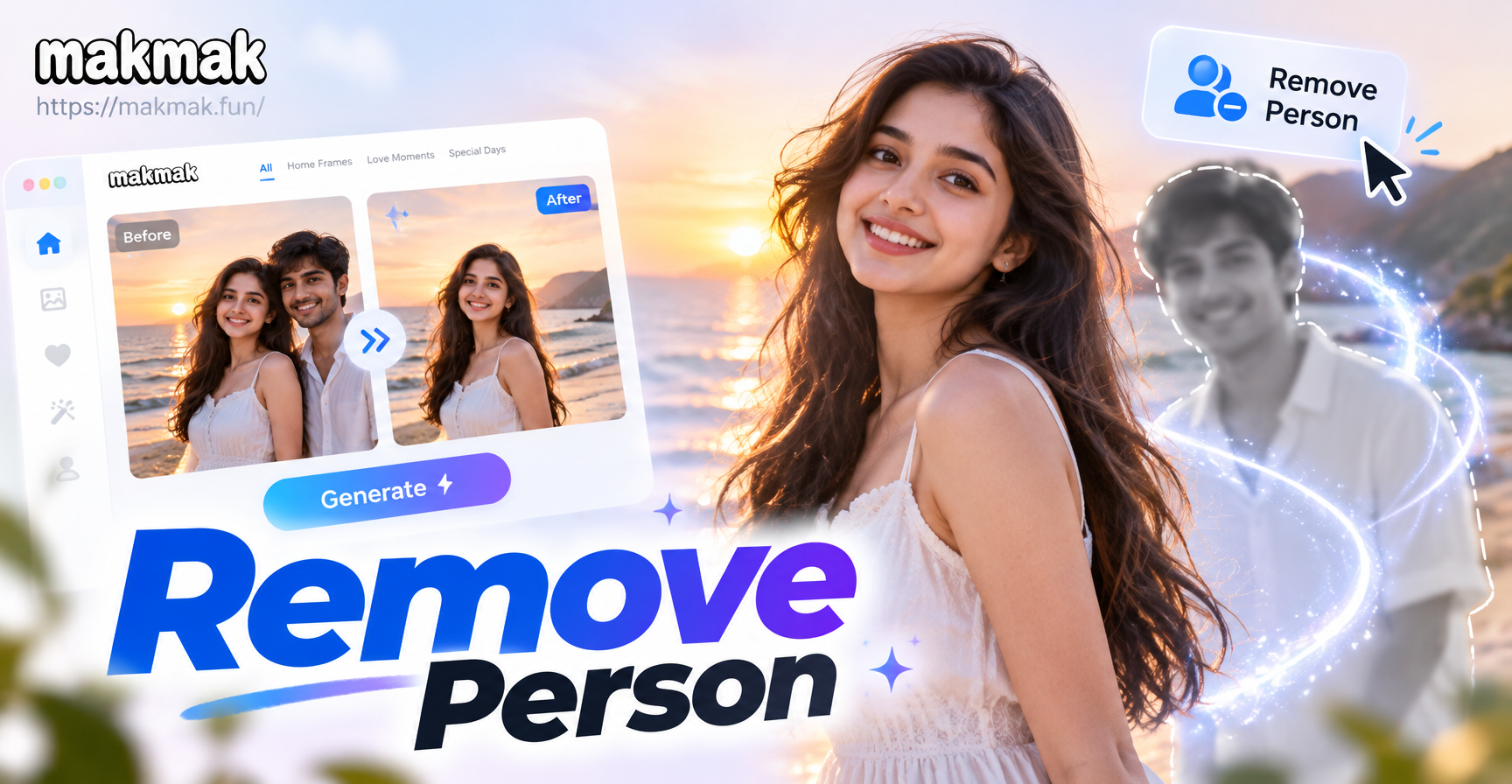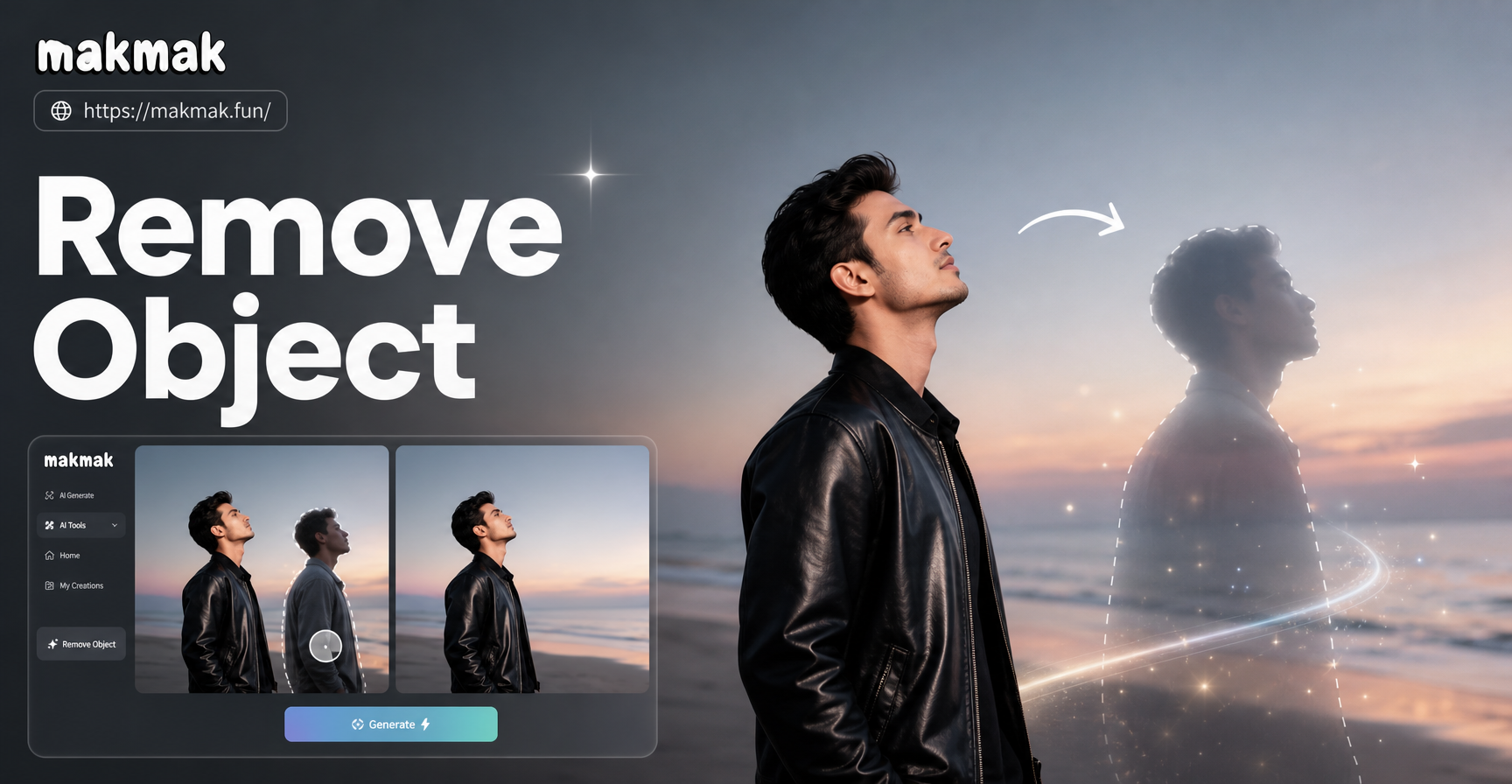
Sometimes a great photo includes someone you would rather not see. A photobomber, an ex-partner, a random stranger in the background, or a friend who blinked at the wrong moment can ruin an otherwise perfect shot. In the past, removing a person from a picture required expensive software and hours of painstaking clone stamp work. Today, you can get clean, natural-looking results in seconds using AI-powered apps and a few simple editing techniques.
This guide explains exactly how to remove someone from a picture using five different methods, from free mobile tools to professional desktop software. Whether you need a quick fix for social media or a polished edit for a printed photo, you will find a method that works for you. The instructions are beginner friendly, and every method has been tested for realistic results.
Why Removing Someone From a Picture Is Useful
Removing unwanted people from photos is one of the most common photo editing tasks. Travel photos often include tourists in the background. Wedding and event shots sometimes capture guests with awkward expressions. Product photos may accidentally include a hand or an arm. Even family portraits can benefit from removing a distracting figure. Modern AI tools have made this process much simpler than traditional cloning, allowing almost anyone to achieve seamless results without learning complex masking techniques.
Method 1: Use an AI Powered Mobile App Like makmak
The fastest way to remove someone from a picture is to use an AI image editing app. makmak is an all-in-one AI design tool that includes image-to-image generation. You upload a photo, describe the change you want, and the AI fills the space naturally. Here is how to do it step by step.
Step 1: Download and Open the App
Install makmak from Google Play. Open the app and look for the image-to-image or photo editing feature. You do not need to create a complex prompt or understand layers. The interface is designed for casual users.
Step 2: Upload Your Photo
Select the photo that contains the person you want to remove. Try to choose a picture where the unwanted person is not overlapping the main subject in a complicated way. Clear separation between people makes the AI edit more accurate.
Step 3: Describe the Edit
Type a simple instruction in the prompt field, for example, "remove the person standing on the left side and fill the background naturally" or "delete the man in the red jacket and extend the wall texture behind him." Be specific about which person you want to remove.
Step 4: Generate and Review
Tap generate and wait a few seconds. The AI will produce a new version of the photo. If the result is not perfect, adjust your prompt. You might say "remove the remaining arm and blend the background more smoothly" and generate again. makmak also offers style filters that can help hide small imperfections by changing the overall look of the image.
This method works well for simple backgrounds like walls, beaches, or open fields. It is less reliable when the unwanted person overlaps complex textures such as hair, wire fences, or busy crowds.
Method 2: Use Photoshop's Content-Aware Fill
Adobe Photoshop remains the gold standard for precise photo editing. The Content-Aware Fill tool is designed specifically for removing objects, including people. Here is how to use it effectively.
Step 1: Open the Image and Duplicate the Layer
Open your photo in Photoshop. Press Ctrl+J on Windows or Cmd+J on Mac to duplicate the background layer. This protects your original image and allows you to work non-destructively.
Step 2: Select the Person
Use the Lasso tool or the Quick Selection tool to outline the person you want to remove. For best results, include a small margin around the person, about 10 to 20 pixels. This gives the algorithm more context to fill the space correctly.
Step 3: Apply Content-Aware Fill
Go to Edit, then Content-Aware Fill. A preview window appears. The green overlay shows the area Photoshop will sample from to fill the selection. Adjust the sampling area with the brush tool if needed. When you are satisfied, click OK.
Step 4: Fine-Tune with the Healing Brush
After the fill, small artifacts may remain, especially where shadows or patterns were interrupted. Use the Spot Healing Brush or the Clone Stamp tool to clean up those areas manually. Zoom in to check edges and blend any harsh lines.
Content-Aware Fill works best on photos with simple, repetitive backgrounds. It can struggle with highly detailed or perspective-heavy scenes, but with a little manual cleanup, you can achieve professional results.
Method 3: Use a Dedicated Mobile App Like TouchRetouch or Snapseed
If you prefer a mobile-only workflow without paying for a professional desktop suite, dedicated object removal apps are a great choice. TouchRetouch and Snapseed are two of the most popular options.
TouchRetouch
TouchRetouch is built specifically for removing unwanted objects. Open the app, import your photo, and choose the Brush tool. Paint over the person you want to remove. The app automatically fills the space using surrounding pixels. You can also use the Lasso tool for larger objects. The result is usually clean on simple backgrounds. TouchRetouch is a paid app but offers a free trial.
Snapseed
Snapseed is a free photo editor from Google. It includes a Healing tool that works well for small to medium-sized objects. Open your photo, tap Tools, then Healing. Use your finger to brush over the person. Snapseed will replace the area with nearby texture. For larger people, you may need to apply the Healing tool multiple times or combine it with the Selective tool to reduce shadows. Snapseed is free and available on both Android and iOS.
Method 4: Use Free Online Tools
Several websites offer object removal directly in your browser, with no installation required. Cleanup.pictures and Fotor are two reliable options.
Cleanup.pictures
Go to cleanup.pictures in your web browser. Drag and drop your photo onto the page. Use the brush to paint over the person you want to remove. Click the erase button, and the website will process the image automatically. The free version works well for simple edits. You can download the result instantly. This method is ideal when you are on a computer and do not want to install anything.
Fotor
Fotor offers a free online photo editor with a Magic Eraser tool. Upload your image, select the Magic Eraser, and brush over the unwanted person. Fotor will replace the area with a natural-looking fill. The free version includes standard resolution downloads, which is enough for social media posts.
Online tools are convenient but may compress your image or require an internet connection. They are best for quick, casual edits rather than high-resolution print work.
Method 5: Manual Clone Stamp or Healing Brush for Full Control
When AI tools fail to produce a seamless result, manual editing gives you complete control. This method takes more time but works on almost any image, including complex backgrounds.
Step 1: Choose Your Tool
In Photoshop, use the Clone Stamp tool for precise copying or the Healing Brush for blending. In free editors like GIMP, similar tools are available. The Clone Stamp samples pixels from a source area and paints them over the target. The Healing Brush also samples but automatically blends texture and lighting.
Step 2: Set a Source Point
Hold Alt on Windows or Option on Mac and click on a clean area near the person you want to remove. This becomes your source. The source should have similar color, lighting, and texture to the area you are covering.
Step 3: Paint Over the Person
Use short, light strokes to paint over the person. Do not drag in one long stroke, as this can create smearing. Frequently resample a new source point to match different parts of the background. For large areas, work in sections.
Step 4: Blend and Check
After covering the person, zoom out to evaluate the result. Use a soft-edged brush at low opacity to blend any obvious seams. Switch to the Healing Brush for final touch-ups on edges and subtle texture differences.
Manual editing is the most flexible method and works on any photo, but it requires patience and a steady hand. It is the best choice when you need pixel-perfect results for prints or professional work.
Tips for Natural Looking Results
No matter which method you use, a few simple habits will improve your final image. First, always work on a duplicate layer or copy of your photo. This preserves the original in case you need to start over. Second, zoom in frequently to check for repeated patterns or smudges that the AI or clone tool may have created. Third, pay attention to lighting and shadows. If the removed person was casting a shadow, you must also remove or soften that shadow. Fourth, after removing a person, the background may look too empty. Add a subtle gradient or slight blur to the background to make the edit less noticeable. Finally, compare the before and after images side by side. This helps you spot small mistakes that are easy to miss when you have been staring at the same photo for too long.
Common Mistakes to Avoid
Many beginners make the same errors when removing someone from a picture. The most common mistake is selecting the person too tightly. Always leave a small margin around the subject so the fill algorithm has enough context. Another mistake is using a source point that is too far away in the Clone Stamp tool, causing mismatched colors. Resample frequently. Some users apply the Healing Brush over a large area in one stroke, which creates a blurry smudge. Use short strokes instead. Finally, do not forget to remove the person's reflection or shadow. A missing reflection is a dead giveaway that a photo has been edited.
Which Method Should You Choose?
If you want a quick fix on your phone, start with makmak or Snapseed. If you need professional-level control and already have Photoshop, use Content-Aware Fill followed by manual cleanup. For one-off edits without installing anything, a free online tool like Cleanup.pictures is perfect. Each method has its strengths, and you can combine them. For example, use an AI app to remove the person, then open the result in Snapseed to fine-tune shadows and edges.
Final Thoughts
Removing someone from a picture is no longer a task reserved for professional retouchers. With modern AI tools, mobile apps, and free online editors, anyone can clean up their photos in minutes. The key is choosing the right method for the complexity of your image and being willing to make small manual adjustments after the automatic edit. Try the makmak app for a fast AI-powered start, and download it today to see how easy photo editing can be.